The five announced steps
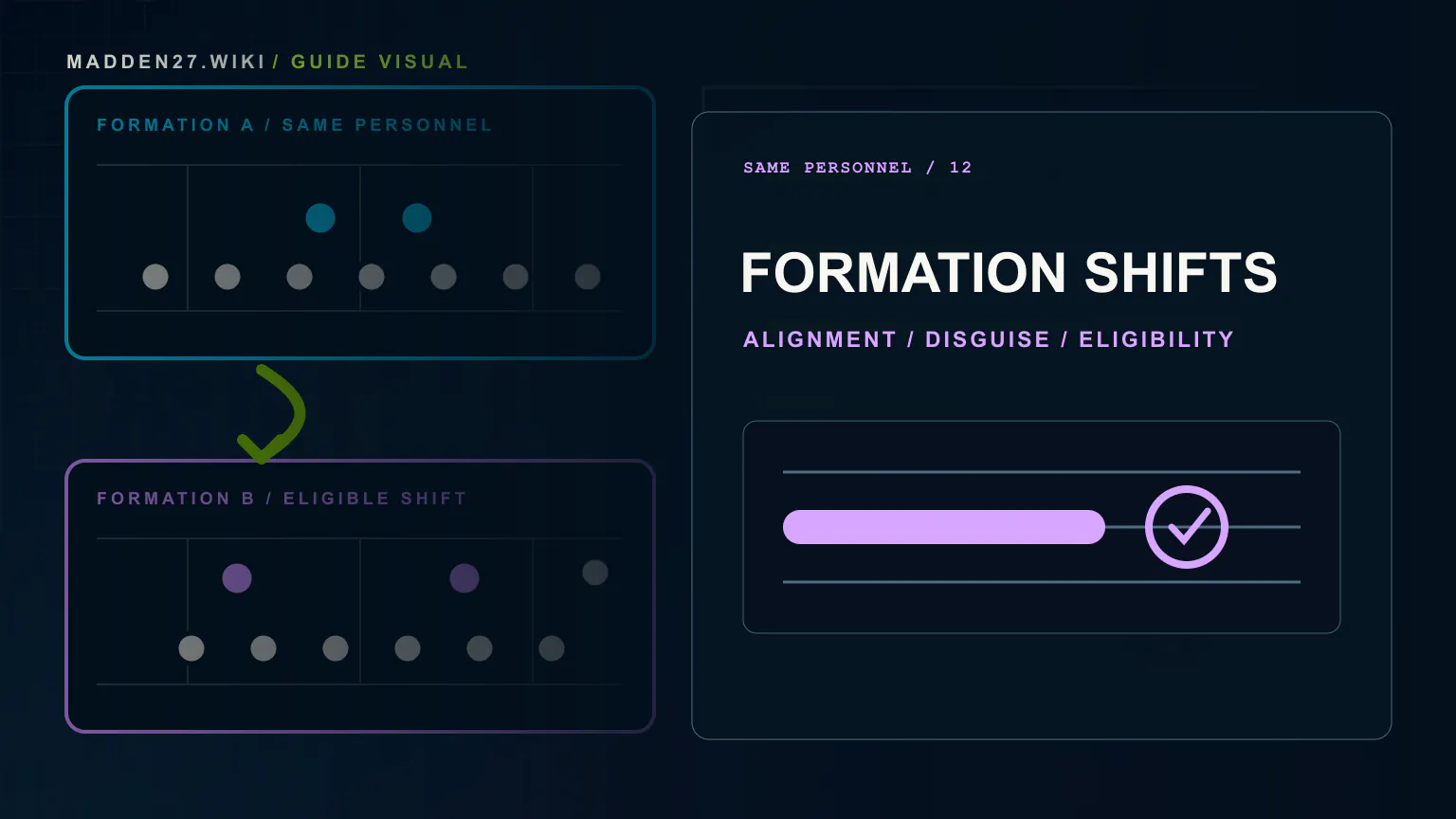
Start on the play-call screen by choosing the play you actually want to run. Toggle Formation Shifts, then cycle only through the eligible formations that use the same personnel grouping.
Select the shifted look, break the huddle, and allow the offense to align in that formation before the snap. EA presents the change at play level rather than as a free switch into every formation in the playbook.
- 1. Choose the base play
- 2. Toggle Formation Shifts
- 3. Select an eligible formation with matching personnel
- 4. Break the huddle
- 5. Align in the shifted formation before the snap
Why some formations are not eligible
The eligibility rule is personnel-aware. The target formation must support the same grouping as the selected play, so a shift does not provide unrestricted access to formations that require different players on the field.
Exact eligible transitions depend on the shipped playbook and package. EA's article explains the rule but does not publish a complete team-by-team matrix of every supported shift.
What changes and what stays fixed
EA says the personnel remains intact while the presentation changes. That allows the offense to show a different formation without treating the shift as a substitution into a new personnel group.
The source also says formation substitutions and customized personnel can work with the feature when the destination formation shares that updated personnel structure. This does not guarantee that every custom package has a valid destination.
Verify a shift before adding it to a gameplan
Record the team, playbook, base play, personnel group, source formation, destination formation, platform, mode, and title update. Confirm that the option appears, the offense aligns correctly, and the intended personnel remains on the field.
Repeat the same shift from the same package before comparing defensive reactions. A changed result can come from ratings, the opponent's call, user adjustments, or tuning, so one successful play is not proof of a universal disguise.